A CCTV export is not finished simply because the recorder displays a success message. The files may belong to the wrong camera, stop before the relevant event, require software that was not collected, or appear correct on the recorder but fail on another computer. These problems are much harder to solve after access to the system has ended.
Playback verification is a practical field quality check. It confirms that the exported material can be opened, that the requested cameras and time periods are present, and that the recording is usable enough for the next stage of work. It is not the same as full forensic analysis or video authentication. The purpose is to detect obvious acquisition errors while they can still be corrected.
The current SWGDE guidance for acquiring video from digital video recorders says retrieved video from all relevant cameras and time periods should be reviewed to confirm proper playback and capture of the incident. Before leaving, it also calls for testing the acquired video on a portable computer and confirming that the correct dates and times were retrieved. This article turns those requirements into a repeatable technical workflow.
Playback verification is more than opening one file
A file that opens has passed only the first test. The viewer might be showing a low-quality secondary export, one channel from a multi-camera package, or a short segment that does not include the event. Some proprietary exports also contain several files that must remain together. A proprietary format is a format designed for a specific CCTV system and may require the manufacturer's own player or codec. A codec is the software component that decodes the compressed video for display.
Define the required cameras and time range first
Write down the required camera or channel identifiers, the requested start and end times, and the event or activity that should appear. Include a reasonable time buffer where the task allows it. If the recorder clock differs from the reference time, keep the documented offset beside the search window so the wrong period is not exported by mistake.
Where the recorder offers both native and open exports, preserve the native or proprietary package as the primary technical acquisition. Native means the data remains close to the system's original recording structure. An open format, such as a common video file, can be useful for rapid viewing, but it may omit metadata, timing information, multiple streams or manufacturer-specific features. Collect the proprietary player and any required codec when they are available.
Keep the exported package intact
Do not convert, trim or rename the only copy simply to make it easier to play. Conversion changes the file structure and may alter or remove metadata. Keep the original folder structure because a player may depend on index files, databases, manifests or linked segments that are not obvious from their filenames.
If the player may create cache or index files, test a verified working copy where practical. A working copy is a duplicate used for examination. Record a hash value – a digital fingerprint used to detect change – when required by procedure.
Test the export on a separate computer
The most useful test is performed on a portable computer rather than only on the recorder that created the export. This confirms that the files and required software have actually travelled with the acquisition. It also exposes operating-system, permission and codec problems before the technician loses access to the original system.
The SWGDE best practices for digital forensic video analysis specifically call for checking proprietary player operability, including operating-system compatibility and codec functionality. Use the player supplied by the recorder or obtained from an official manufacturer source. Do not solve a field problem by downloading an unverified executable from a random website.
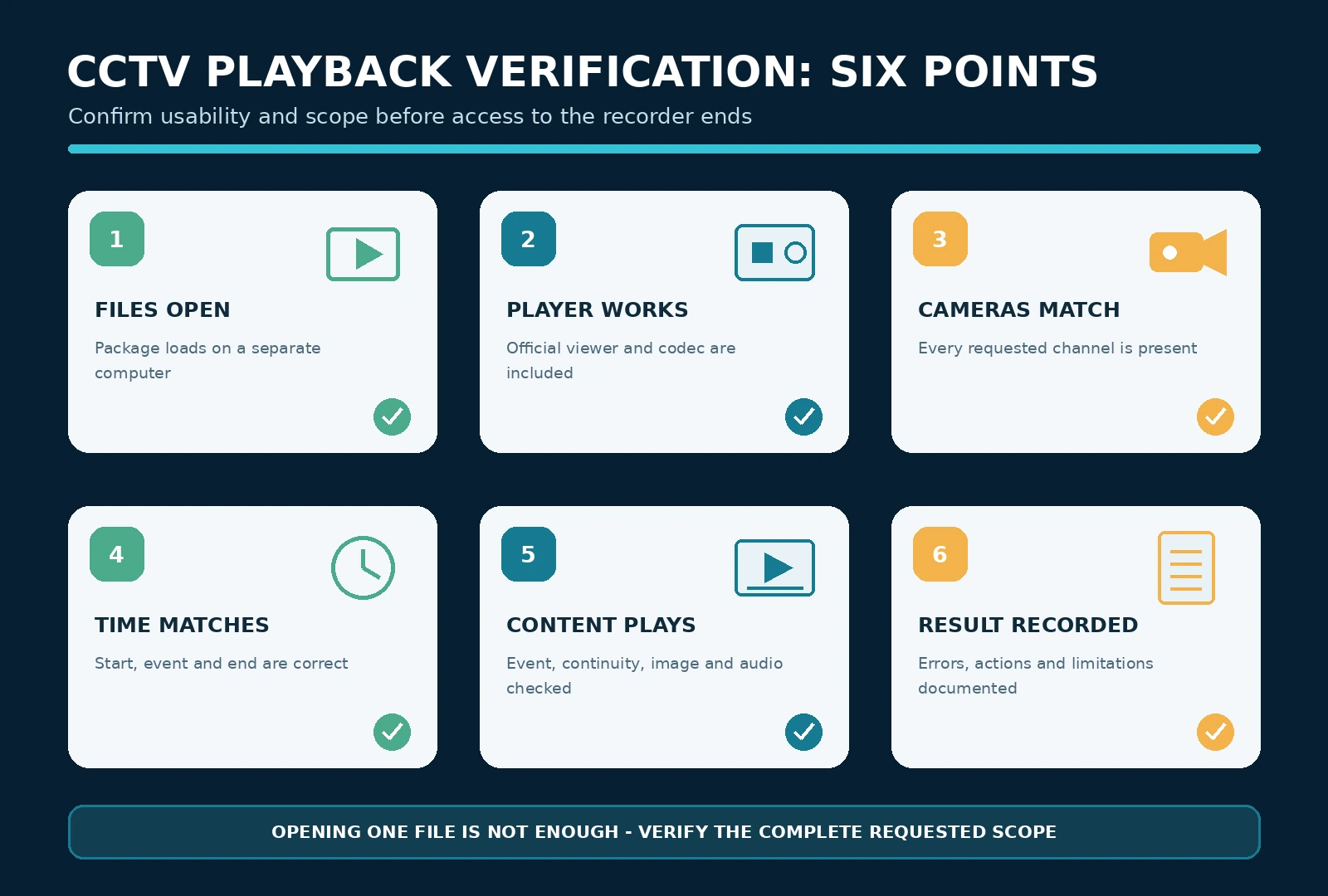
Use a structured CCTV playback verification sequence
- Inventory the export folder, file count, subfolders and approximate data size before opening anything.
- Start the supplied player or the correct approved viewer and confirm that the package loads without missing-file errors.
- Open the first relevant camera and check the beginning, a point within the incident window, and the end of the exported range.
- Repeat the check for every relevant camera and every requested period, not only the easiest file to open.
- Confirm date and time displays against the acquisition notes, including the recorder offset, time zone and daylight-saving status where relevant.
- Document the result, preserve the required player or codec, and resolve any failure before leaving whenever that is practical.
Confirm camera identity
The player should show the expected channel number or label, but the image content is the stronger confirmation. Note the visible area, direction of view and any fixed landmarks. In a multi-camera export, check that all selected channels are present. Some players open on a single channel by default even though other channels are stored in the package.
Confirm the start, event and end
Check the first available frame or moment, the relevant event window and the final part of the export. This catches exports that begin late, end early or contain only a preview. If the system creates many short files, confirm that the sequence continues across file boundaries. Review enough of the actual incident to establish that the correct event was captured; matching the date alone is not sufficient.
Confirm time displays carefully
A player timeline, a timestamp burned into the picture and the operating system's file date can represent different things. Verify the date and time that the CCTV system associates with the recording, then relate it to the documented clock offset. File creation or modification times commonly describe when the export was produced or copied, not when the event happened.
Confirm continuity without over-interpreting it
Look for unexplained gaps, frozen pictures, repeated sections, black video, corruption or sudden camera changes. Motion-triggered systems may contain legitimate gaps, and poor workstation performance can also cause choppy playback. Record what you observe before drawing a technical conclusion.
Confirm image presentation and audio
Check that the picture is not obviously stretched, cropped, rotated or displayed at the wrong speed. A fisheye camera may require dewarping in the proprietary player, while an interlaced recording may show line artefacts during motion. These issues do not automatically mean the export is damaged, but the required viewing method should travel with the files. If audio is expected, unmute the correct stream and check a representative section.
What a successful field check should establish
| Verification point | Result to document |
|---|---|
| Independent playback | Export opens on the portable computer without relying on the recorder. |
| Player and codec | Required official player, codec or installation package has been collected and tested. |
| Camera scope | Every requested camera or channel is present and identified by both label and view. |
| Time scope | Start, incident window and end match the request after applying the recorded time offset. |
| Content | The expected event or activity is visible, with any gaps or limitations recorded. |
| Presentation | Image geometry, playback speed and audio are understandable for the intended review. |
| Package integrity | Folder structure is preserved and the verification method has not replaced the original export. |
| Documentation | Computer, software, result, errors, corrective actions and remaining warnings are recorded. |
Common failures to catch before leaving
- The export contains the correct date but the wrong hour because the recorder offset, time zone or daylight-saving setting was overlooked.
- Only one camera was exported from a multi-camera request, or a channel label does not match the actual view.
- The final segment is missing because the selected end time was wrong or the recorder imposed an undocumented export limit.
- The video files were copied but the proprietary player, codec, index files or password information needed for playback was not collected.
- The player works on the recorder but not on the portable computer because of operating-system, permission or codec incompatibility.
- Audio was expected but was not selected, is on a separate track, or is muted by default.
When the exported video will not play
Do not immediately delete the failed export or overwrite it with a second attempt. Preserve the folder, error message and steps taken. Check that the complete directory structure was copied and that the correct player was started. If policy allows, test a working copy on another compatible computer. A different result can separate a file problem from a workstation problem.
Return to the recorder and try a smaller time range, one camera at a time or another supported export option. Collect the viewer from the system or manufacturer. If no usable export can be made, document the failure and follow the specialist fallback route described in the SWGDE guidance.
Document the playback check while the system is available
A short verification record makes the result understandable to the next technician. Record the export identifier, source media, folder name, file count, cameras, requested and retrieved time range, player and version, computer and operating system, presence of audio, playback result, errors and corrective actions. Add the hash value when it is part of the organisation's integrity procedure.
The CCTV Collector workflow keeps system details, time verification, photographs and final quality checks in one case record. Its structured reporting features can be used to record discrepancies before the technician leaves the system. The app documents the acquisition process; it does not receive, play or analyse the CCTV video itself.
Final pre-departure checklist
- All requested cameras and time periods have been exported.
- The relevant event has been located in the exported material, not only on the recorder.
- The export opens on a separate computer using the collected player or codec.
- Dates and times match the acquisition notes after applying the documented recorder offset.
- Errors, gaps, unusual presentation and corrective actions have been recorded.
- The native package and folder structure have been preserved.
- Temporary settings or connections have been restored and documented.
- The files have been transferred, labelled and secured according to the applicable procedure.
Leave with video that is usable and understood
To verify CCTV playback properly, test the export away from the recorder, confirm every required camera and time period, review the actual incident window, and keep the software needed to interpret the files. Preserve the native package rather than converting the only copy, and document any problem instead of assuming that an unusual display proves missing data.